This element can use variables that contain information about the call, such as the phone number, duration, start time, etc. These variables can be used to perform various operations, such as mathematical operations (addition, subtraction, etc.), string truncation, date and time formatting, and much more. For more information, see 'Execute code'.
To add the element:
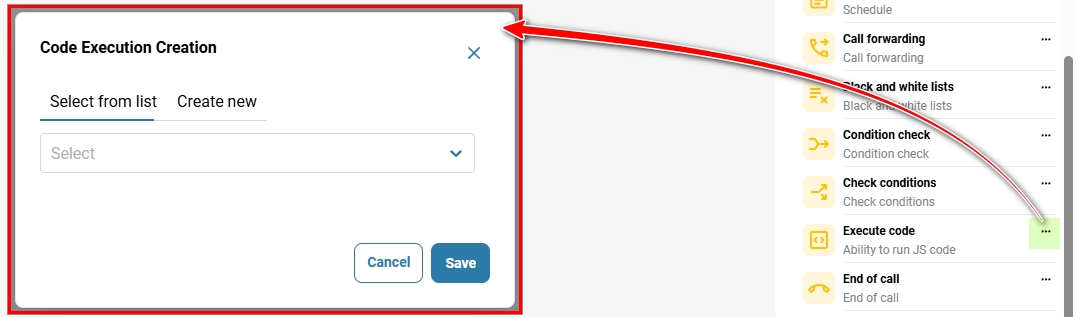
In the 'Telephony' → section, 'Call scenario' tab → on the right, in the sidebar, click the three-dot icon on the 'Execute code' element.
Select code from the drop-down list.
Click the 'Save' button.
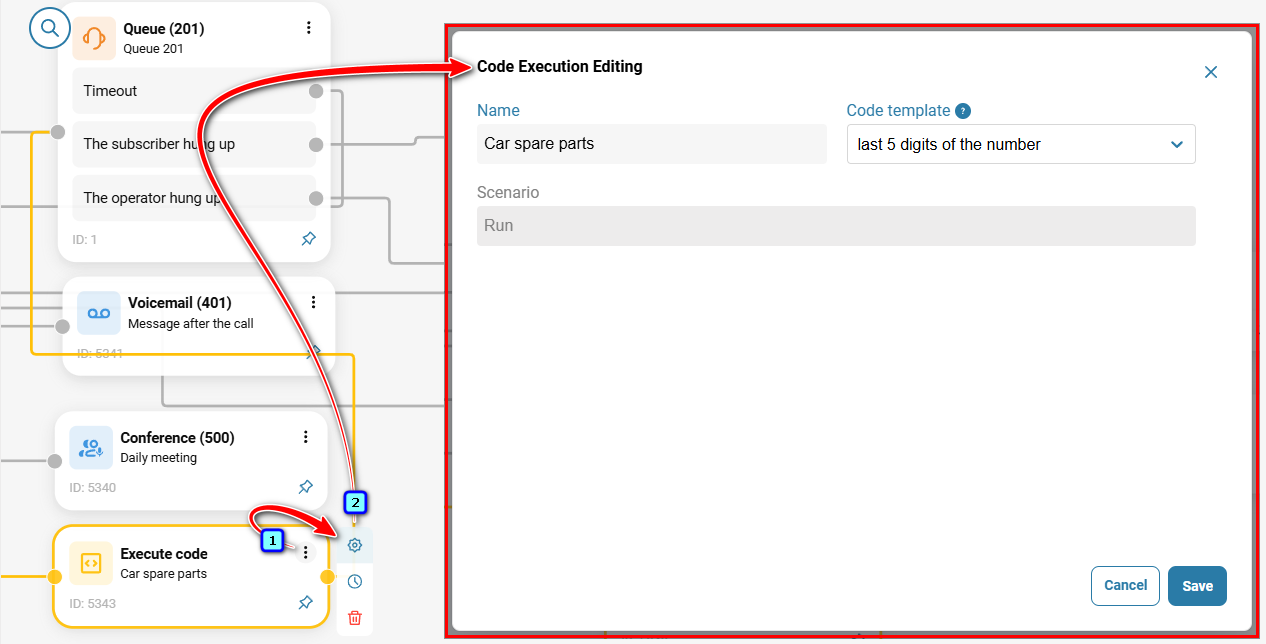
To edit the element, click the three-dot icon on the element, then click the gear icon.
Example of using the 'IVR menu' element in an auto repair shop use case:
In the diagram below, the customer uses the 'IVR menu' element to navigate to the 'Execute code' element to order a spare part. The customer names the part, and the element sends a request for that part to the CRM and reports the quantity available at different warehouses. The customer can then move to another branch of the call scenario.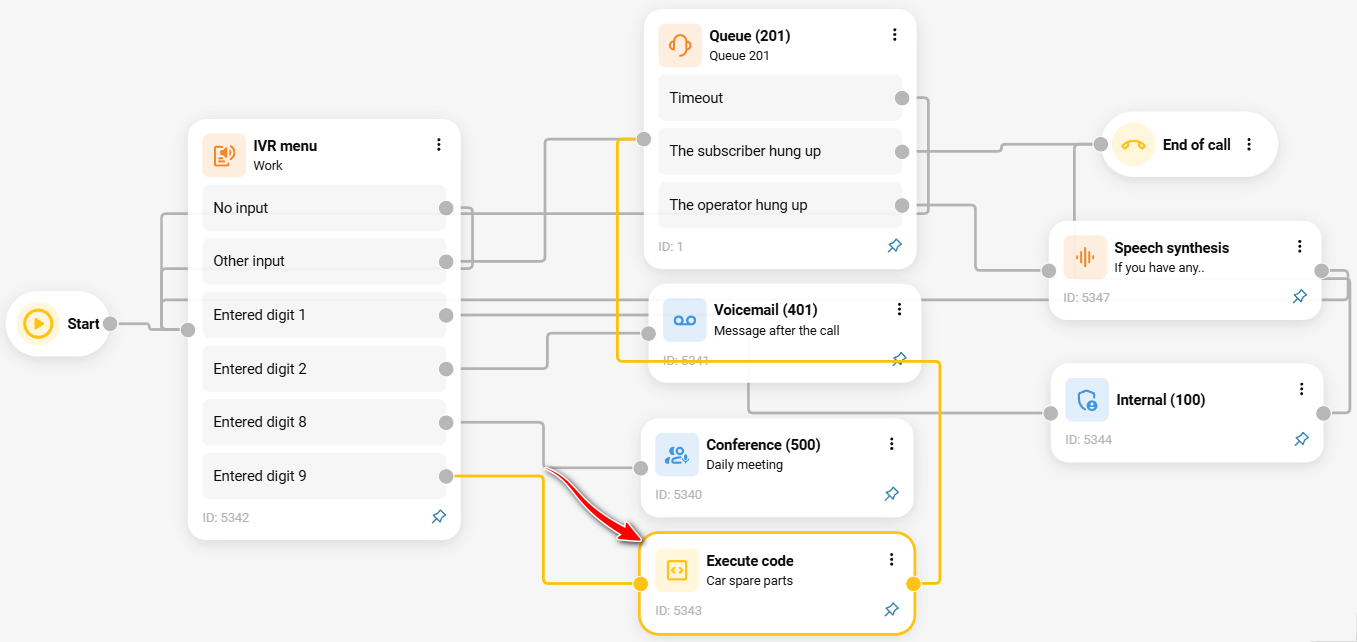
Also see:
Call scenarios
Call Scenario Elements
Was this article helpful?
That’s Great!
Thank you for your feedback
Sorry! We couldn't be helpful
Thank you for your feedback
Feedback sent
We appreciate your effort and will try to fix the article