To create a 'Question-answer' element, go to 'Telephony' → 'VPBX' tab → 'Call routing' menu on the left → 'Question-answer' and click the 'Add' button.
| ⚠️ Attention! | Before configuring the 'Question-answer' service, you must connect the 'Speech Synthesis - Speech-to-Text / Text-to-Speech' service. For more information, see 'How to enable Speech Synthesis - Speech-to-Text / Text-to-Speech'. |
|---|
'Question-answer' element parameters:
Name — the name of the element.
Call scenario — displayed if a call scenario is linked to this 'Question-answer' element.
Service — the speech synthesis service (Nlab, Yandex, Yandex BrandVoice, Google).
Language — the language used for speech synthesis and speech recognition.
Question tab:
Speech synthesis — select this option to generate spoken messages for the caller using the 'Message' and 'Question repeat' fields.
File — select this option to choose audio files for the question played on the first attempt and the message played if the answer is not recognized.
Voice — the voice used to read the text. Voices differ in tone, gender, and the speaker's language.
Role — the emotional tone of the voice, such as neutral, friendly, cheerful, irritated, etc.
Specify the message playback Speed.
SSML (Speech Synthesis Markup Language) — a markup language for speech synthesis that makes speech sound more natural and expressive.
In the Message field, enter the text to be converted into speech. You can listen to it by clicking the corresponding button.
Question repeat — the message played if the answer is not recognized.
Variables in call scenario — preloaded user variables (name, outstanding debt, etc.) displayed if they are present in the linked call scenario. For information on how to set variables, see 'Question-answer element'.
Answer tab:
Recognition attempts — the number of attempts to recognize the subscriber's speech.
Maximum duration of the phrase to be recognized (min) — the maximum time the system will spend trying to recognize the subscriber's speech.
Silence time — the silence duration the service considers sufficient to determine whether the caller has finished answering the question.
Speech time — the minimum duration for which the caller's speech is recorded, starting from the moment the caller begins answering.
Start recognition on question interrupt — enable this option to stop playing the question as soon as the caller's voice is detected.
When DTMF is entered, interrupt the question and start digit collection — allows the subscriber to start entering digits on the phone keypad immediately, without waiting for the robot (IVR) to finish speaking.
After completing the configuration, click 'Save'.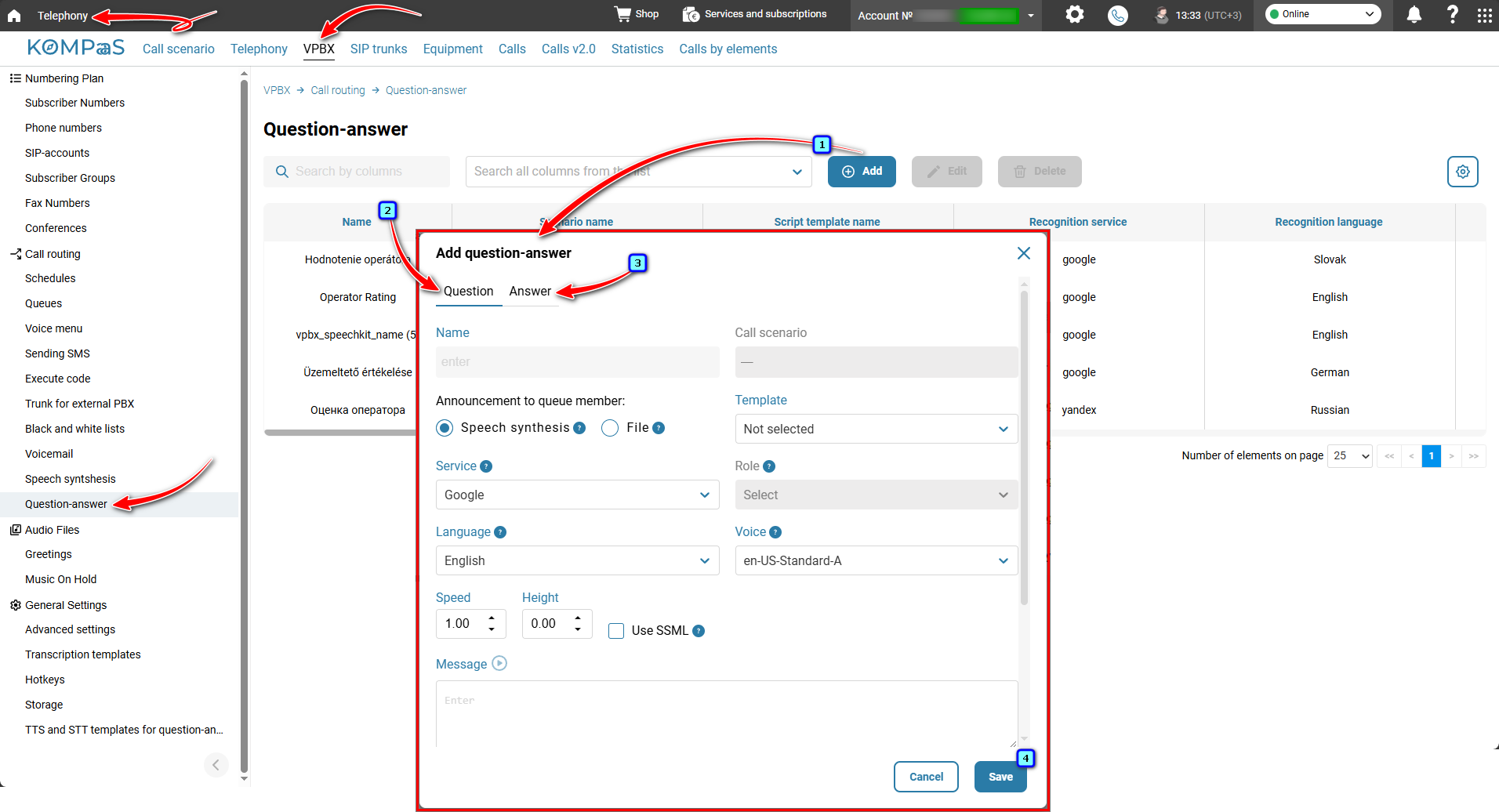
Also see:
How to activate Speech Synthesis - Speech-to-Text / Text-to-Speech
Was this article helpful?
That’s Great!
Thank you for your feedback
Sorry! We couldn't be helpful
Thank you for your feedback
Feedback sent
We appreciate your effort and will try to fix the article