The 'Question-answer' element placed in a call scenario can route a call to different scenario branches depending on the customer's responses.
For more information about this functionality, see 'Question-answer'.
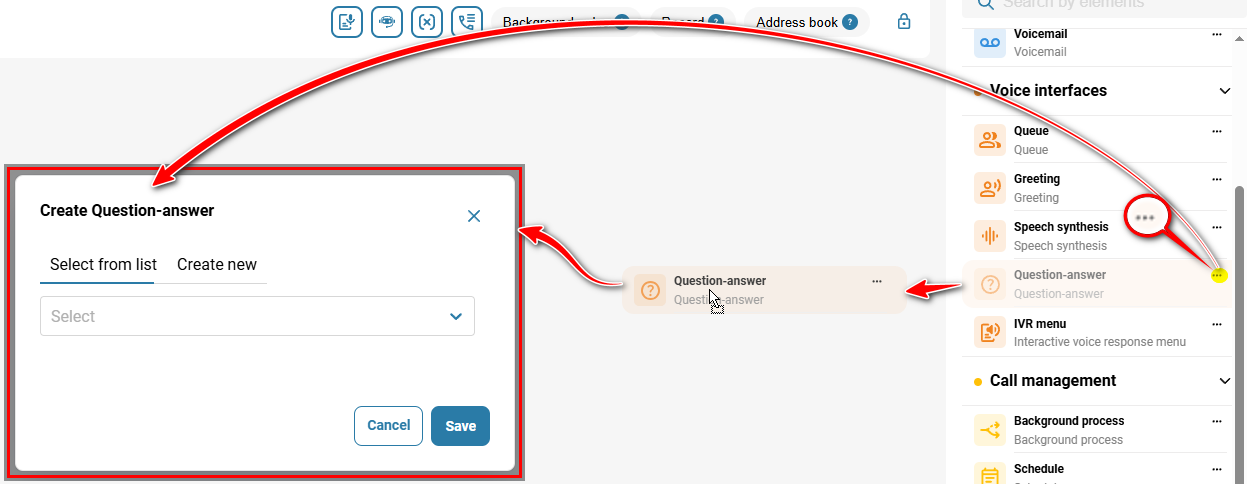
To add the element:
Go to 'Telephony' → 'Call scenario' tab → in the sidebar on the right, click the three-dot menu on the 'Question-answer' element icon, or drag and drop the element while holding down the left mouse button.
Select a previously created 'Question-answer' option.
Click the 'Save' button.
To edit the element:
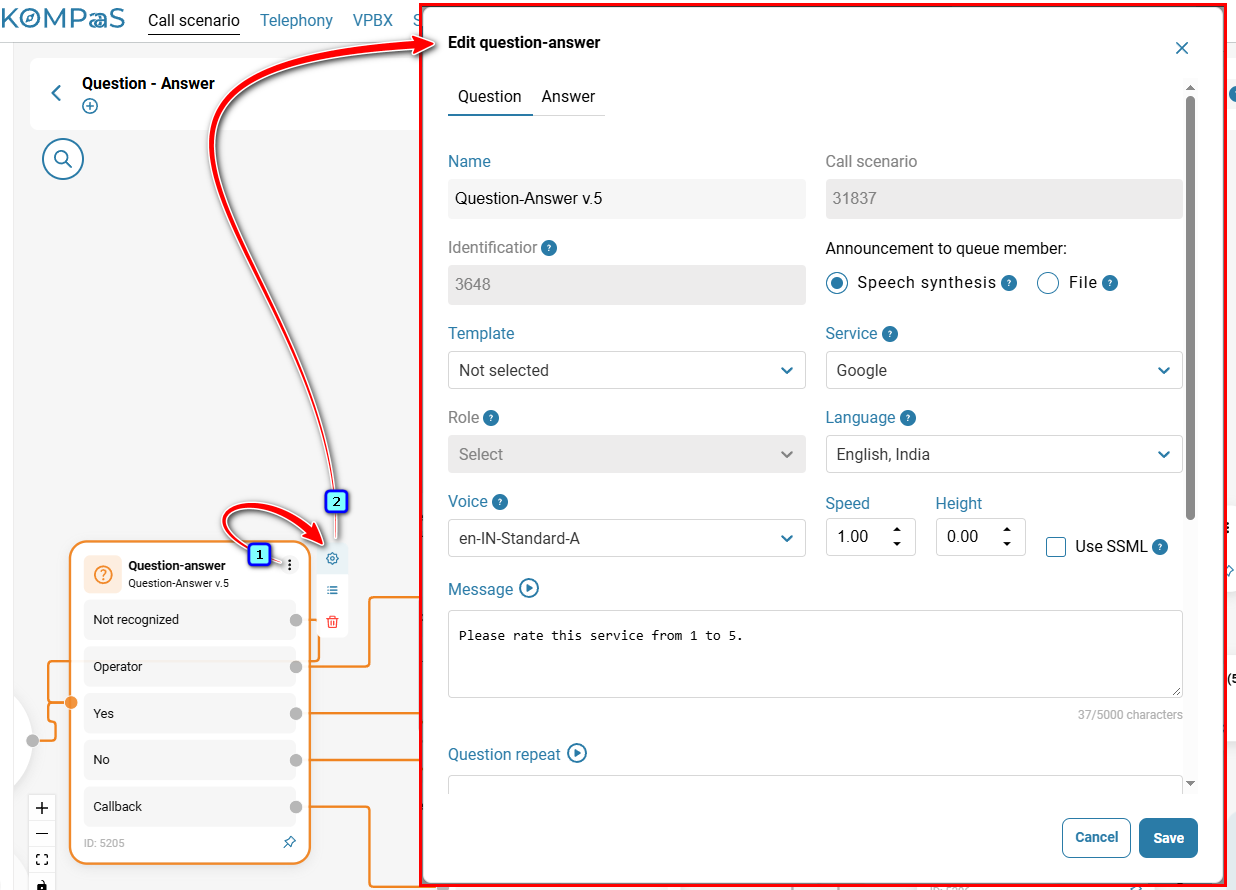
Click the three-dot menu on the element, then click the gear icon.
In the 'Edit question-answer' modal window, configure the block parameters using the tooltips (question mark icon).
'Question' tab — 'Speech synthesis' method. Enter the question in the 'Message' field. This message is played the first time the question is asked. Enter the text to be played if the response is not recognized in the 'Question repeat' field. For more information, see 'How to set up Question-answer'.
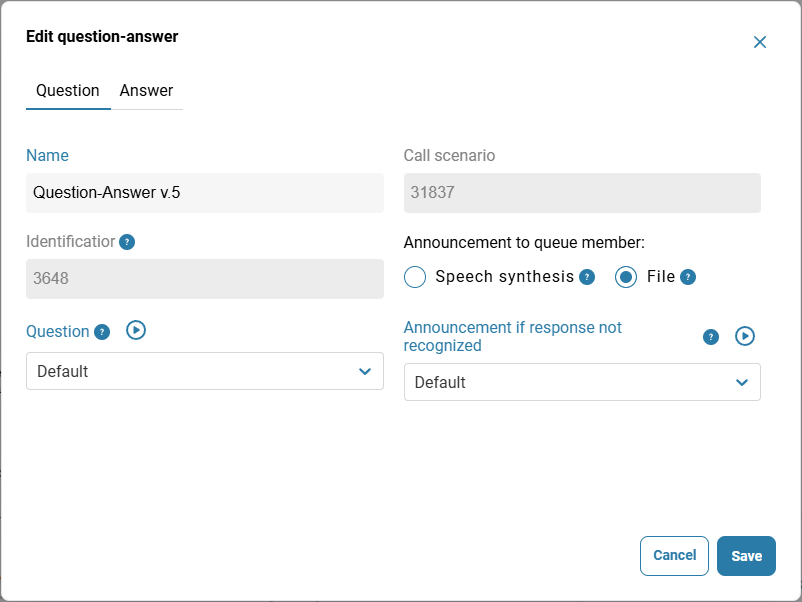
'Question' tab — 'File' method. Select the audio recording for 'Question', which is played the first time the question is asked, and 'Announcement if response not recognized'.
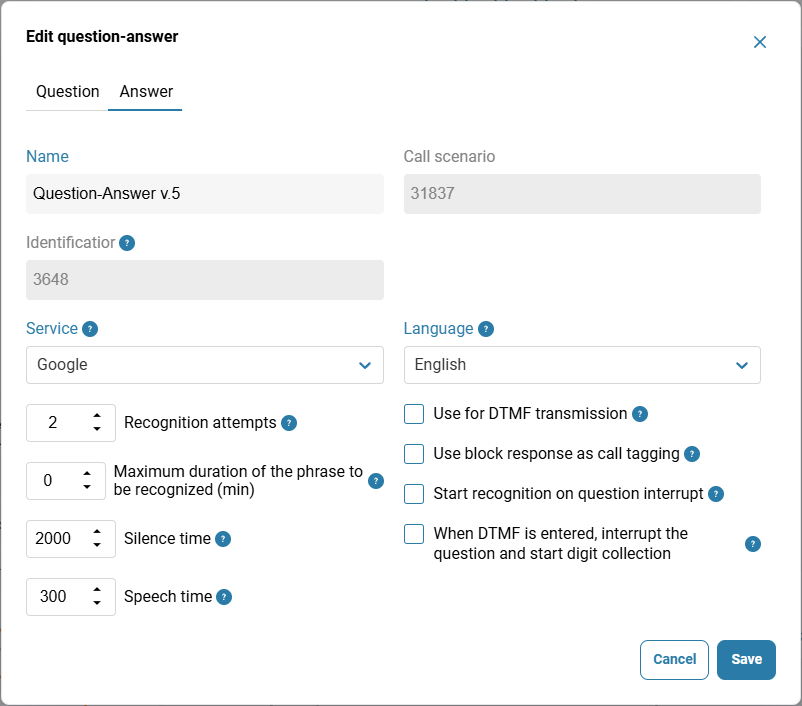
'Answer' tab. For more information, see 'How to set up Question-answer'.
To add an intent:
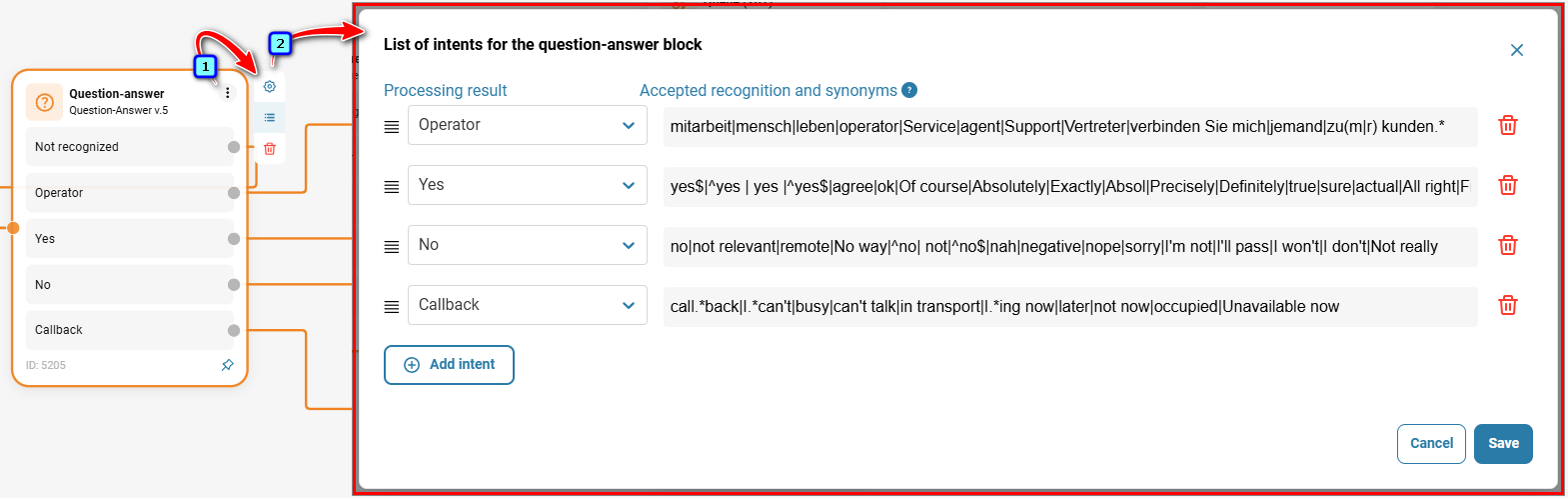
Click the three-dot menu on the element, then click the button shown in the screenshot below. In the 'List of intents for the question-answer block' modal window, select the recognition results to be processed.
If necessary, add your own recognition variants and synonyms in the 'Accepted recognition and synonyms' field.
Click 'Save'.
Now connect the element to other elements in the call scenario.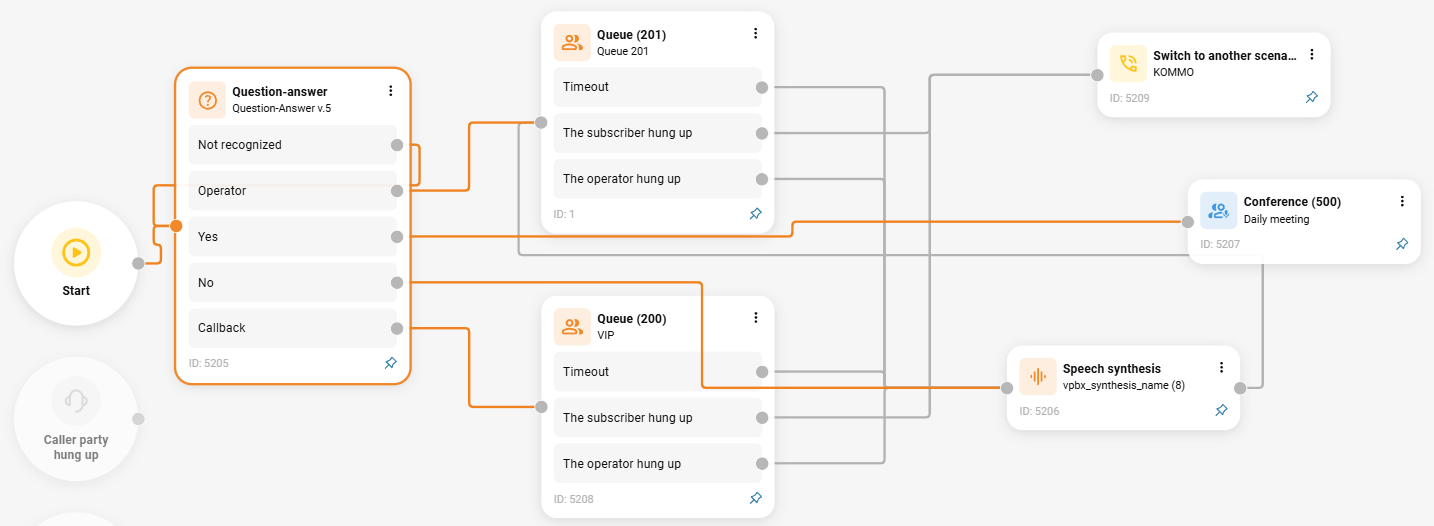
Also see:
How to set up "Question-answer”
How to activate Speech Synthesis - Speech-to-Text / Text-to-Speech
Was this article helpful?
That’s Great!
Thank you for your feedback
Sorry! We couldn't be helpful
Thank you for your feedback
Feedback sent
We appreciate your effort and will try to fix the article