Go to the "Automated calls 2.0" section.
Before you start setting up an automated call, you need to:
- Connect a phone number. See "Enabling a phone number".
- Create a call scenario in “VPBX” → “Call scenario”. See "Call scenario settings".
- Create a contact list in “Automated calls 2.0” → “Contact groups”. See "Automated calls 2.0 → How to create contacts".
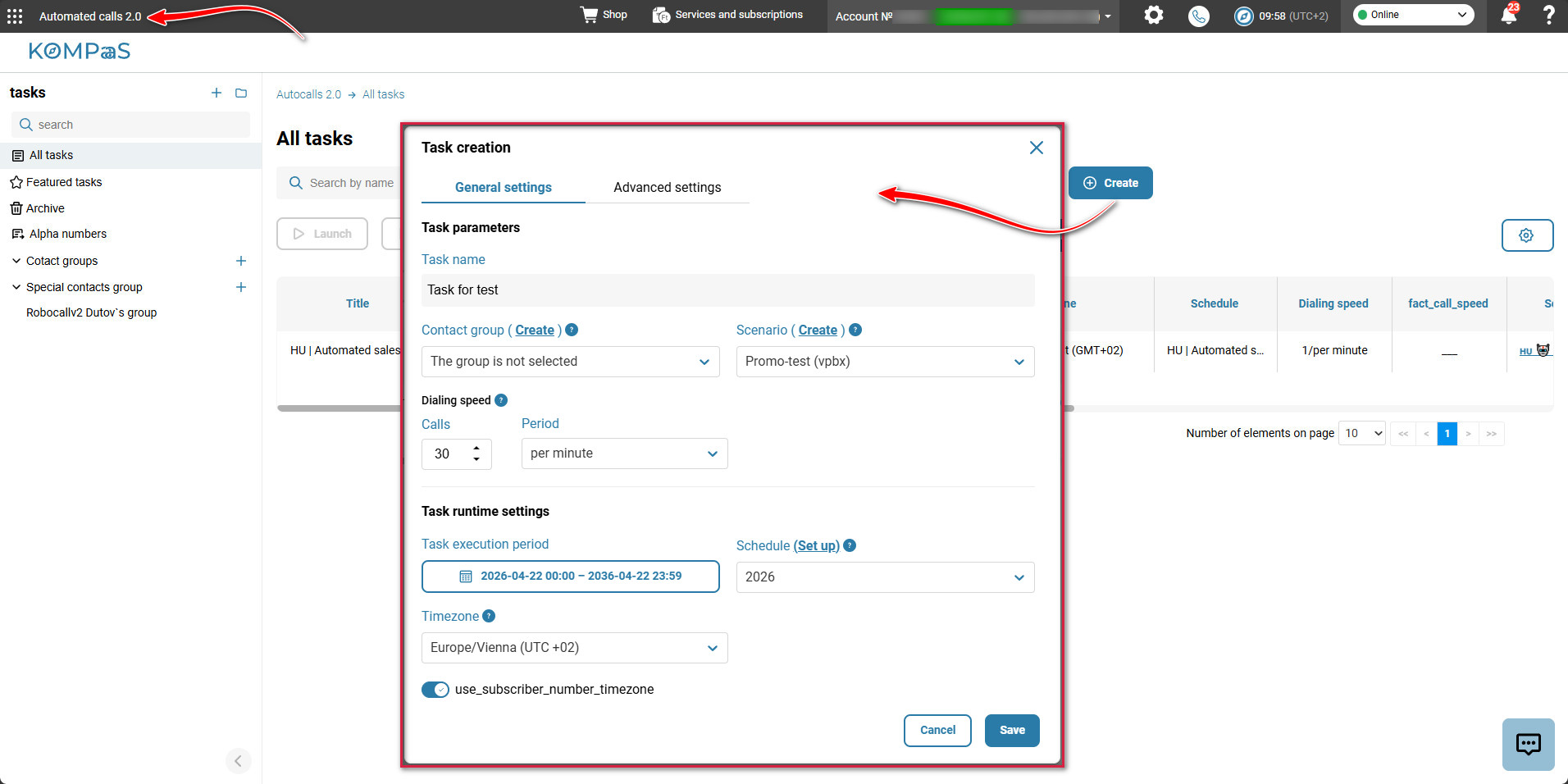
Click “Create” and fill in the fields in the “Task creation” modal window that opens:
Tab: “General settings”
Task parameters
Task name — enter the task name.
Contact group — you can select a group from the address book (its contacts will be converted into targets when the task is created).
- Optional — you can also create a task without a group — for “transactional” tasks where targets are added later (via API).
Scenario — select a call scenario created earlier.
⚠️Warning!
The scenario must have a linked number — otherwise the calls will not start, and the number must have enough lines.
Dialing speed:
- Calls — the number of calls for the selected period (minute/hour/day).
- Period — the period within which the number of calls will be made.
Task runtime settings
Task execution period — specify the date range.
Schedule — choose the schedule according to which dialing will take place.
Timezone — by default, dialing uses the account time zone.
Use subscriber number timezone — if enabled, calls are made taking into account the subscriber’s time zone. I.e., the call will not be made at night.
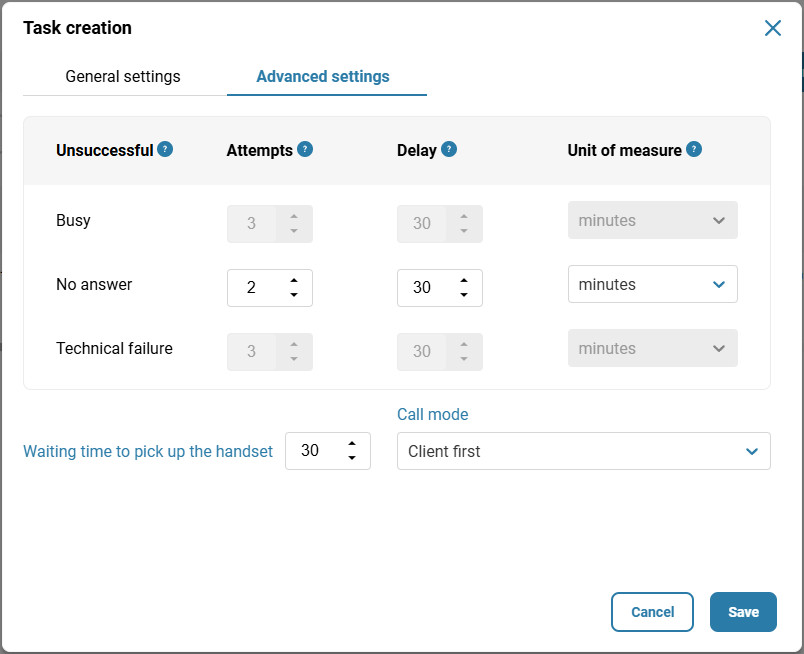
Tab: “Advanced settings”
Unsuccessful — actions of the robot for a specific call type. Settings for calls with the “Busy” and “Technically unsuccessful” types are available only to the MCN manager.
Attempts — the maximum number of attempts for unsuccessful call types (busy, no answer, technically unsuccessful).
Delay — intervals between repeated attempts (e.g., if “busy”, retry after 30 minutes).
Unit of measure — minutes, hours, days.
Waiting time to pick up the handset — how long the robot will wait for the subscriber to pick up for the call to be considered successful.
PCall mode — there are two options:
Client mode — i.e., for an external subscriber;
or
Scenario first — i.e., the scenario is activated before connecting to the subscriber.
The created task will be waiting for approval by your manager.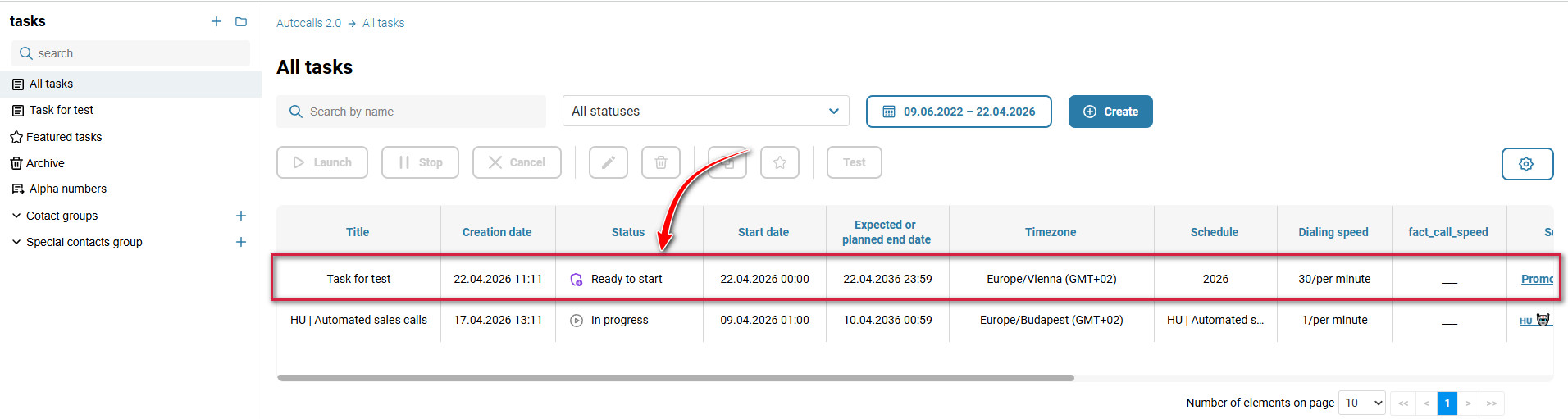
Was this article helpful?
That’s Great!
Thank you for your feedback
Sorry! We couldn't be helpful
Thank you for your feedback
Feedback sent
We appreciate your effort and will try to fix the article