Call scenario is a sequence of events that occur during a call and can be represented using a convenient graphical flowchart.
For more information, see 'Call scenario'.
To create or configure a call scenario, go to 'Telephony' → 'Call scenario' tab → 'All scenarios' in the left-hand menu and click 'Create script'.
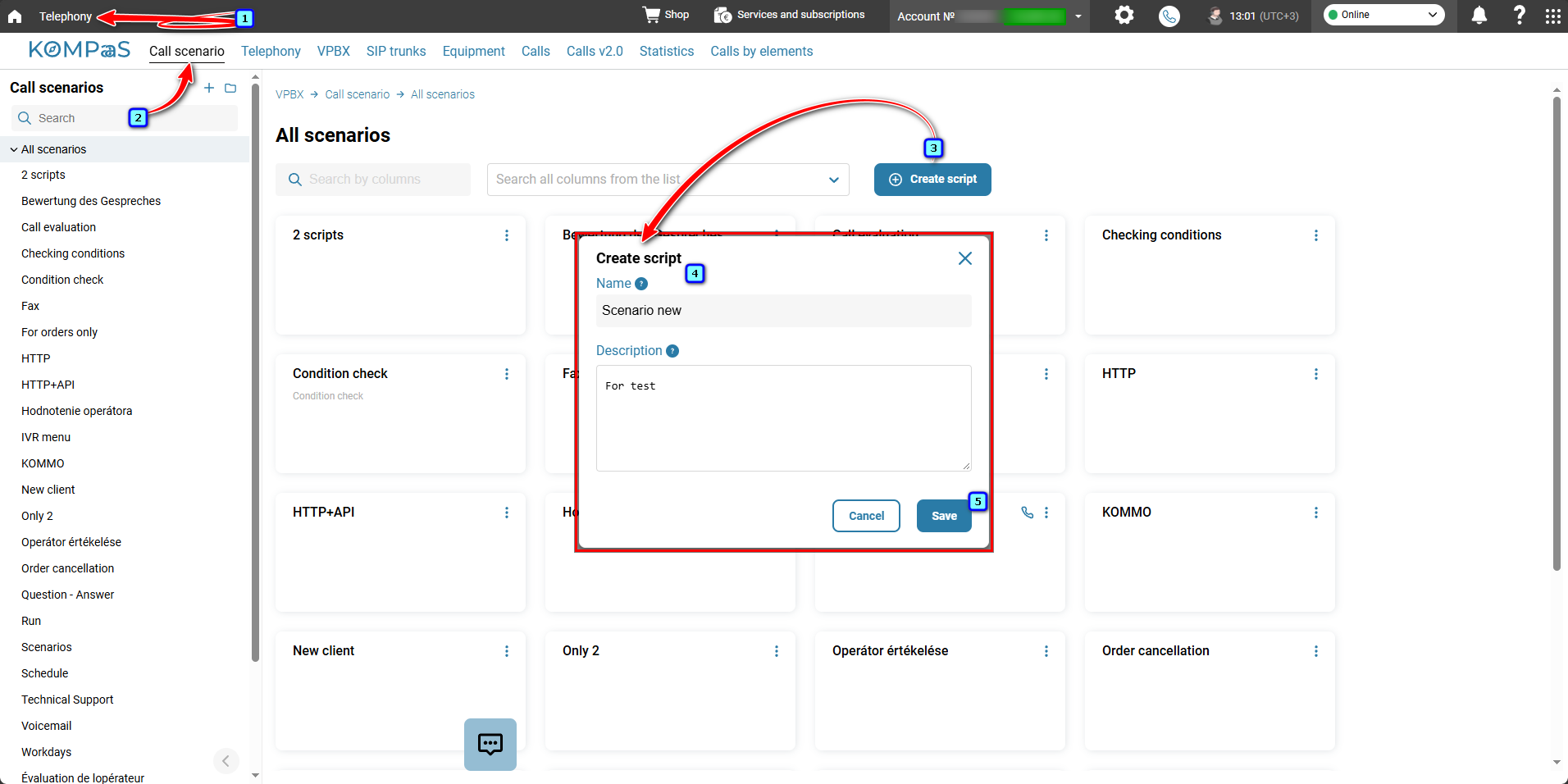
A scenario containing two active elements — 'Start' and 'Queue' — will be created.
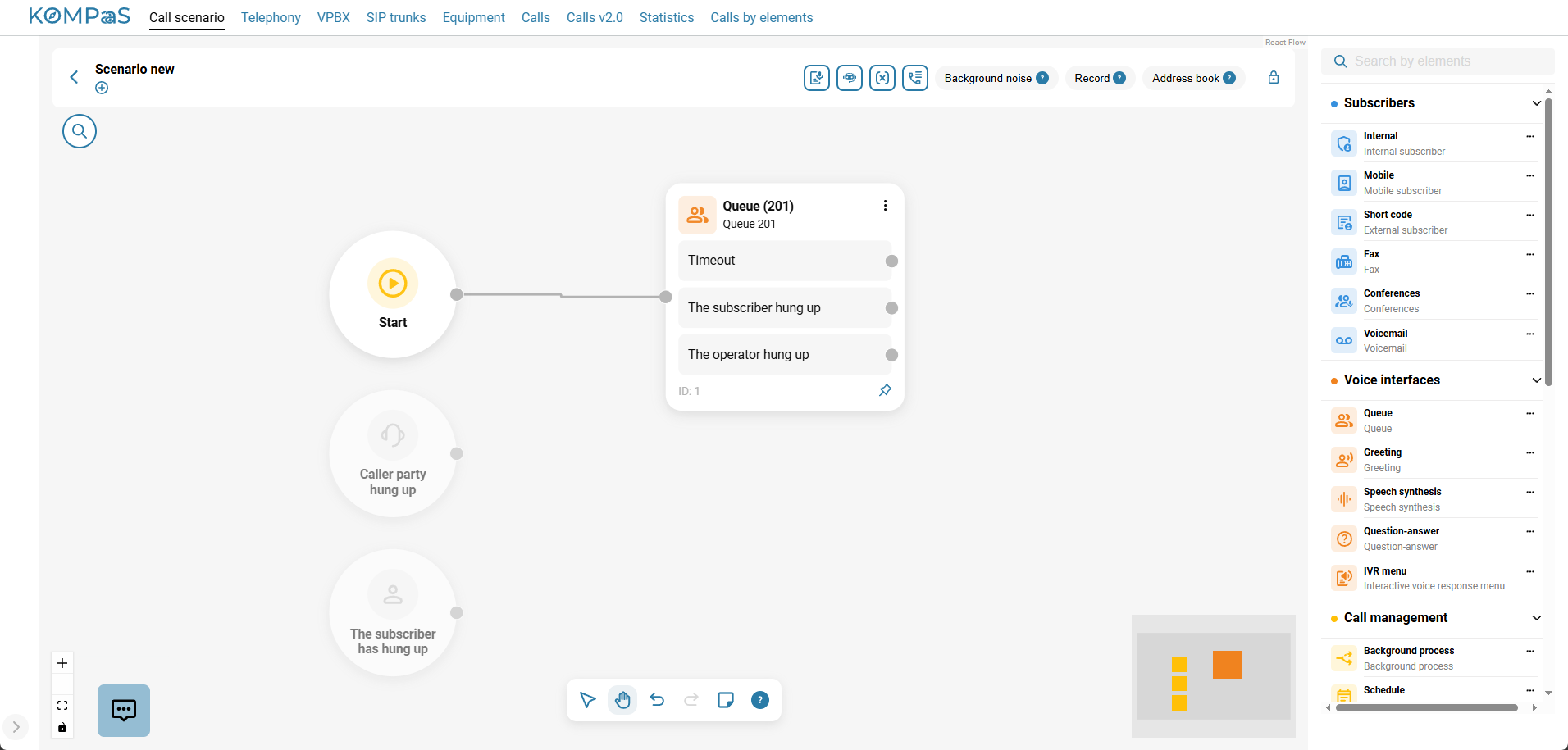
Next, add the elements required to handle the call from the panel on the left to the flowchart. For more information about the elements, see 'Call Scenario Elements'.
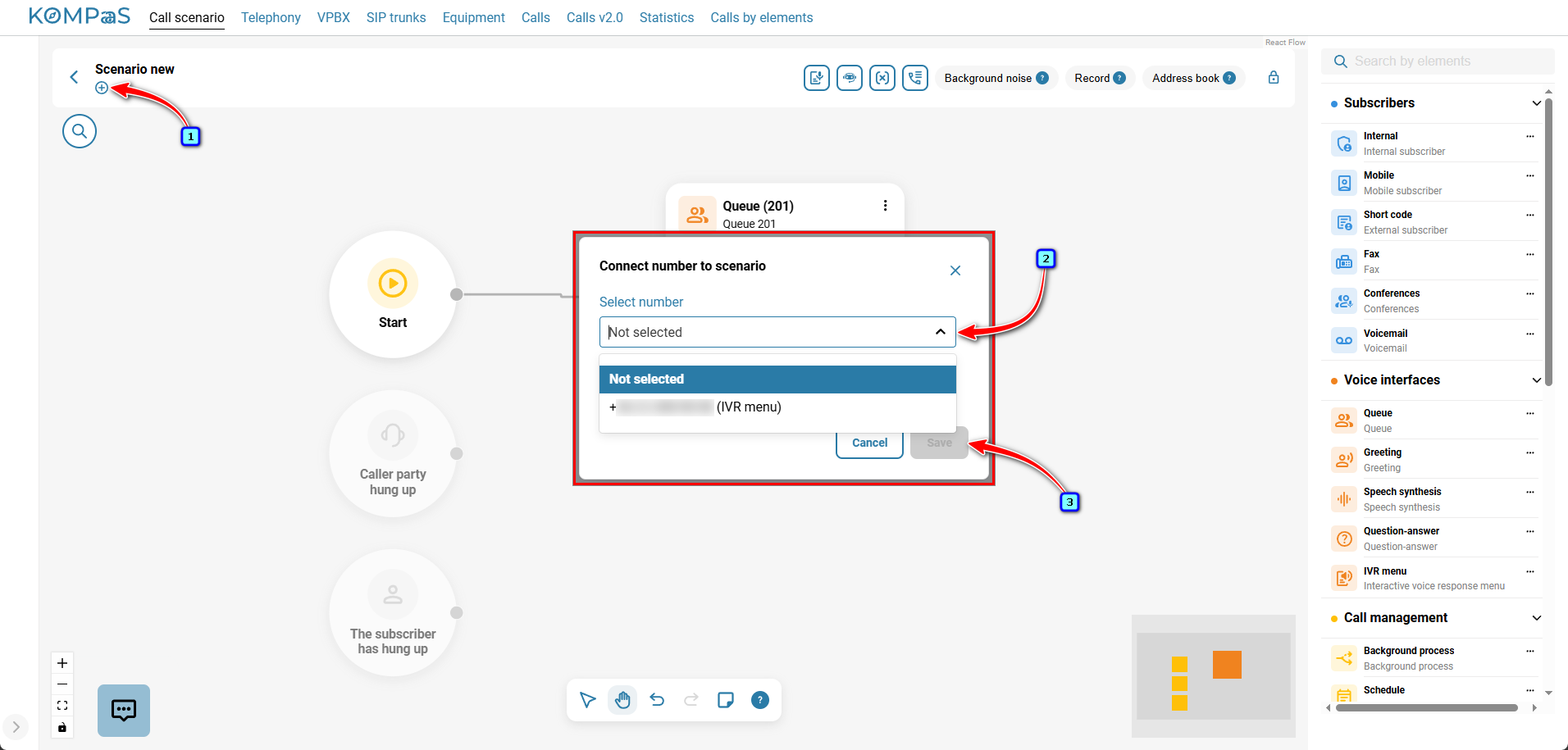
Link a phone number to the scenario.
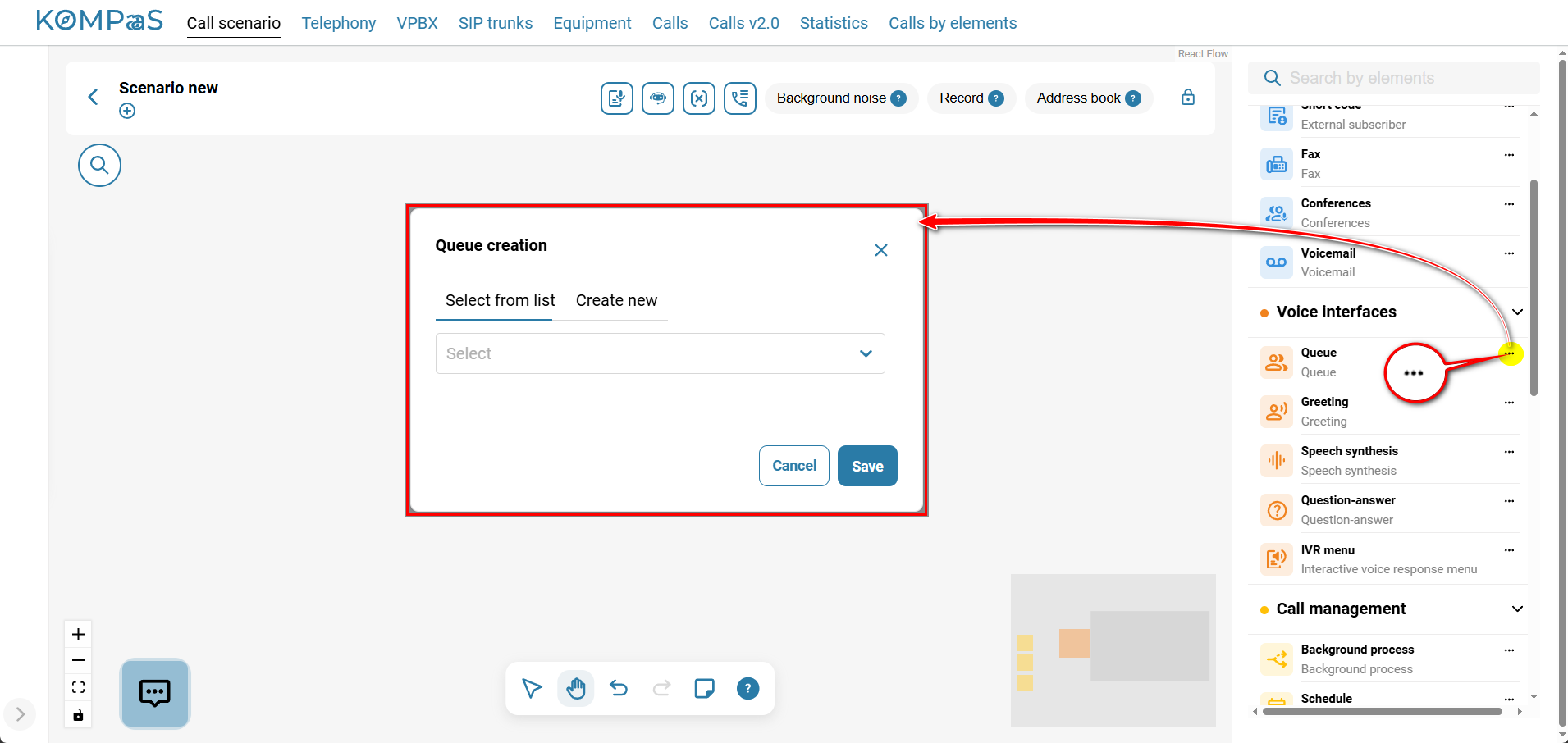
Managing Elements in the Flowchart
You can add elements in several ways:
By clicking the three-dot menu on the element itself;
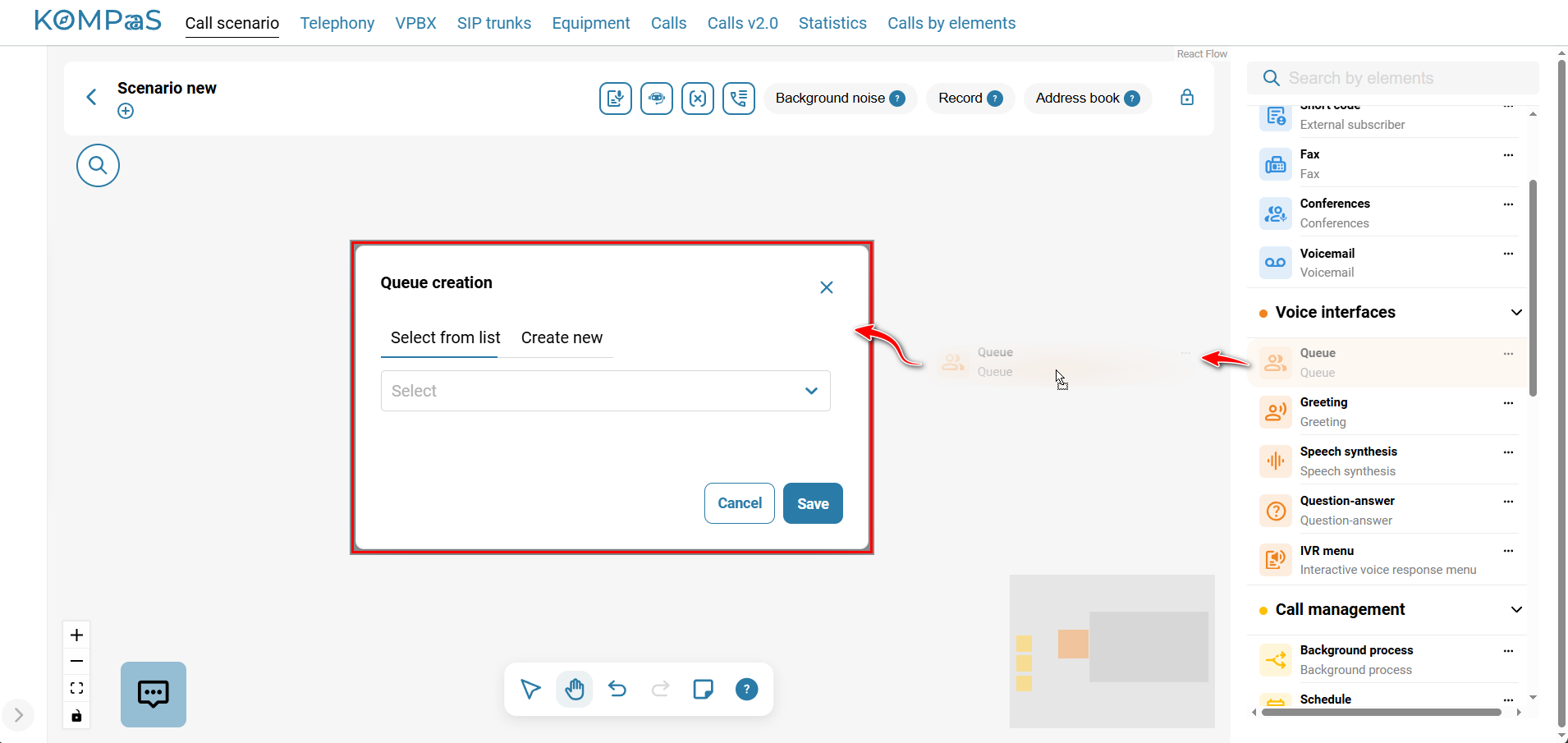
By dragging and dropping an element while holding down the left mouse button.
General templates
You can also use scenario templates that are automatically created when a virtual PBX is connected.
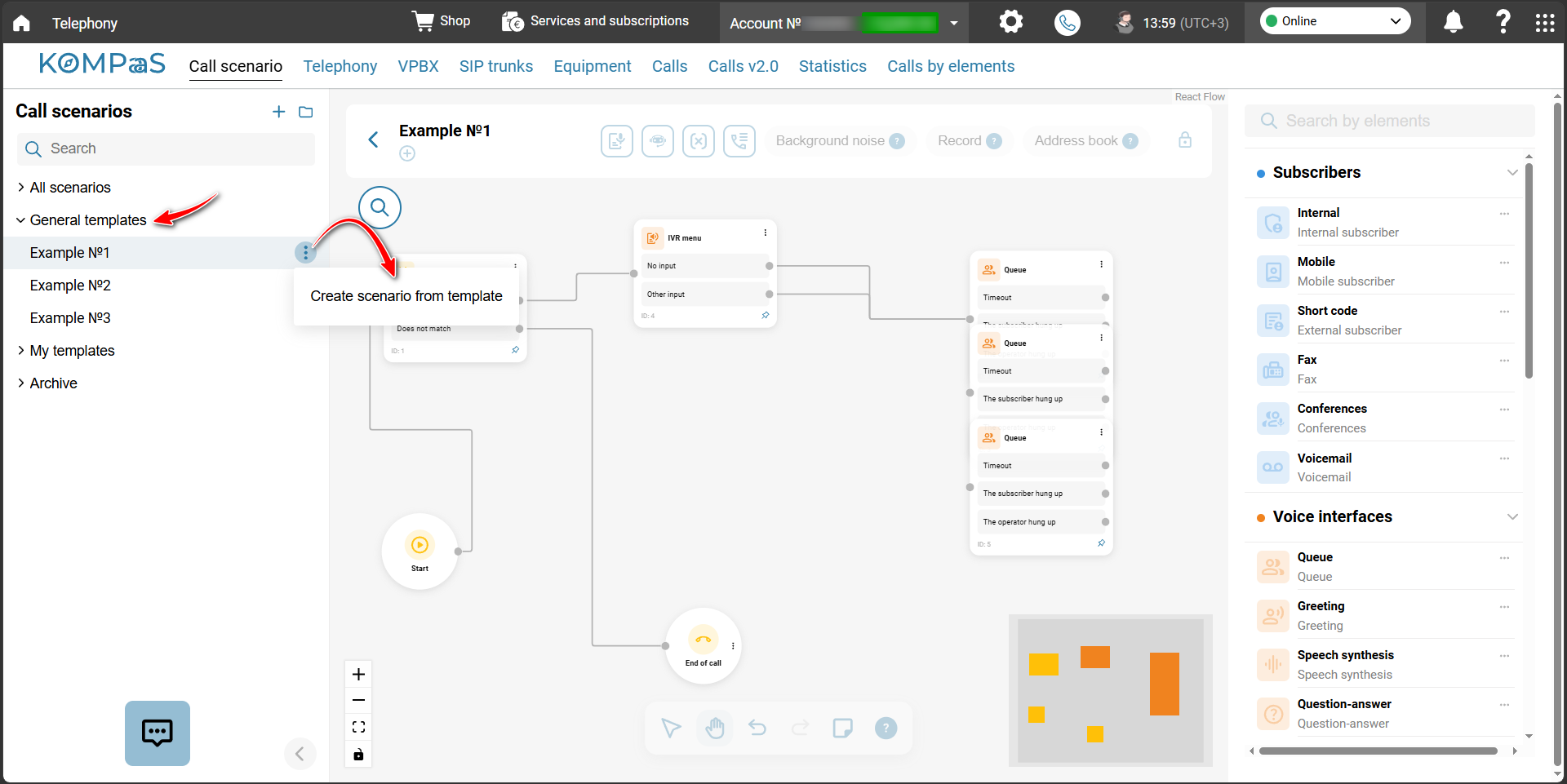
Go to 'Telephony' → 'Call scenario' tab → 'General templates' in the left-hand menu.
On the block of the selected scenario template, click the three-dot menu and select 'Create scenario from template'.
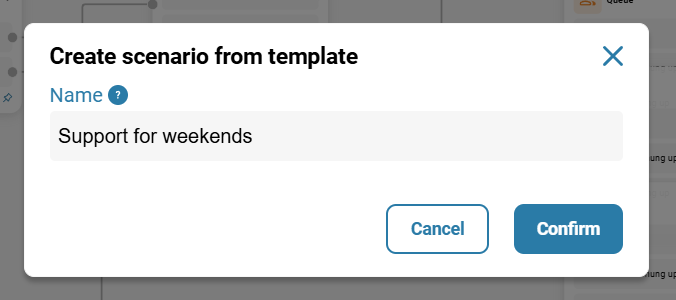
Enter the scenario 'Name' and click 'Confirm'.
Also see:
Was this article helpful?
That’s Great!
Thank you for your feedback
Sorry! We couldn't be helpful
Thank you for your feedback
Feedback sent
We appreciate your effort and will try to fix the article